
Operating system utilities that remove junk files, unnecessary system components, outdated log files and stray application detritus to free storage space and assist users in optimizing their computer’s performance aren’t just for Windows users. Mac laptops and desktops benefit from the same tools, too.
The challenge isn’t determining whether you need such a system cleaning utility but actually selecting a trustworthy and reliable option. This is especially true considering such maintenance tools have begun integrating privacy protections, antimalware features and other file-cleaning capabilities.
Fortunately, MacPaw—the Ukrainian-based developer that also offers Mac users Moonlock cybersecurity protections, the Setapp software subscription service and the ClearVPN app to better secure online communications—provides CleanMyMac. Notarized by Apple and winner of multiple awards, the application boasts a 4.6 (out of 5) rating and more than 10,000 ratings on Apple’s App Store.
NOTE: I’ve previously written about MacPaw’s ClearVPN, Setapp subscription service and CleanMyMac apps for TechRepublic.
Having tested and reviewed Mac utilities professionally for some 20 years, I’ve found MacPaw’s CleanMyMac a compelling choice. In addition to offering a clean user interface that makes accessing and wielding the program’s numerous capabilities quickly and easily, the program’s proven safe, reliable and effective. That’s a winning combination by any measure.
Better yet, you can try the Mac-cleaning system utility free for seven days, and the program includes a 30-day money back guarantee as well as discounts for having used a competing product. But make no mistake, MacPaw’s CleanMyMac is well worth its $39 annual cost. So much so that every Mac user should be entrusting the app for at least three reasons:
1. CleanMyMac is easy to use
Open the program and you’ll immediately see why it’s won user interface design awards. The app is clean and easily navigated, as shown in Figure A.
Figure A
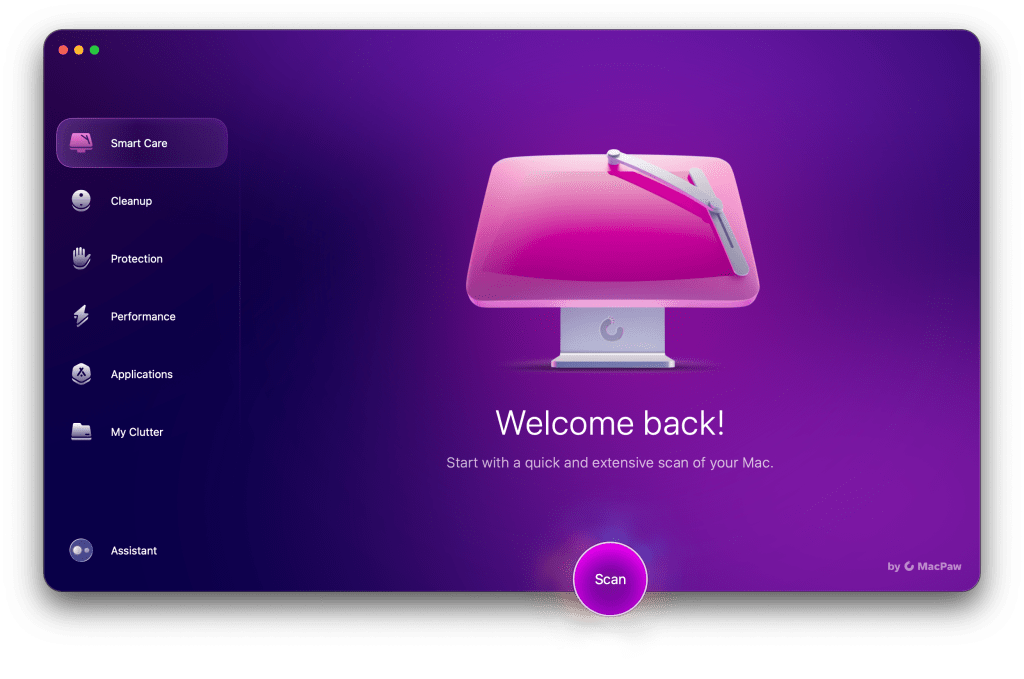
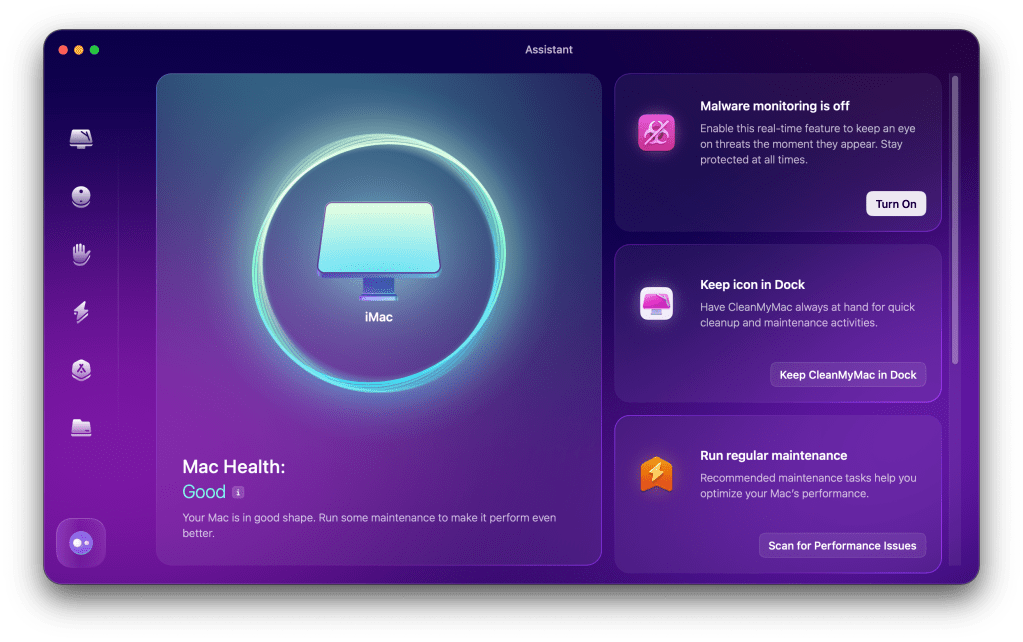
You can set the program to run automatically, use the app’s Smart Care feature or leverage its different components (such as Cleanup, Protection, Performance, Applications and My Clutter), individually as needed. There’s also an Assistant feature, as shown in Figure B, that simplifies enabling various components and protections, scheduling routine maintenance and monitoring a Mac’s health.
Figure B
2. The program effectively removes unnecessary files and apps
Whether you leverage CleanMyMac’s Assistant or individual system-cleaning components from the main menu, the program excels at identifying and describing changes it can make to optimize disk space and system performance, as shown in Figures C, D and E.
Figure C

Figure D

Figure E

CleanMyMac’s Applications component, meanwhile, enables viewing a list of installed applications, as well as the option to selectively remove unneeded programs, as shown in Figure F.
Figure F

3. The platform won’t slow your Mac’s performance
One problem common to many antimalware, systems maintenance and similar utilities is they command more than their fair share of resources. Having used CleanMyMac for years, that’s never been my experience.
A quick macOS Activity Monitor check confirms CleanMyMac uses only a minimum of system resources when running in the background. For example, CleanMyMac consumes just 33.3MB of system memory, versus 50.7MB for the Activity Monitor itself.
As for CPU cycles, CleanMyMac uses just 10 threads and a minimal to non-detectable percent of the CPU’s operation when operating in the background. Even the lightweight Activity Monitor consumes 9 threads and 1.8 percent of the CPU, comparatively, when running.
MacPaw CleanMyMac: A Reliable and Trustworthy Utility
Whether you need to free disk space on your Mac, properly uninstall applications or schedule regular maintenance routines to help your Apple desktop or laptop run well, you can trust MacPaw’s CleanMyMac to do the job. Certainly, it’s worked well for me. While I’ve used other system-cleaning utilities—including WinZip Mac Optimizer and CCleaner for Mac—but those platforms lacked the robustness and capabilities you’ll find in MacPaw’s competing product.
I’ve been running CleanMyMac for years. I’ve used the program on both Mac laptops and desktops. In fact, I’ve entrusted the app on all my Macs because it’s easy to use and works effectively without slowing my systems. And, as noted earlier, that’s a compelling combination.



 Erik Eckel
Leave a comment